
TABLE OF CONTENTS
- Create a company in Freshdesk
- Send an email to the technical contact for setting up the Slack Channel
- Create a Slack channel
- Create a Private Category in Discuss
When you receive an onboarding request, you should do the following operations:
Create a company in Freshdesk
Please remember to add these initial fields for each customer:
- Subscription (can be Gold, Silver, or Bronze)
- AS nodes (how many nodes the customer has a license for)
- Reseller (if any)
- Domains for this company (very important to trigger alert based on customer subscription)
- Renewal date
- Industry
Note: Information needed about the new customer can be found at https://docs.google.com/spreadsheets/d/1598W5X49eye_aSooLVa_u8J5I2KNBnexr9quo8hLMKY/edit#gid=0
Send an email to the technical contact for setting up the Slack Channel
Note: This step can normally be skipped as it is being done by Customer Success (Agnes & David)
- The email should be addressed to the Technical Contact, and you can keep in CC the Contract Contact, as well as our internal sales guy that is in contact with this customer (usually the person that opens the ticket for onboarding)
- For sending the email, if you want, you can follow this template:
Dear ----,
I'd like to help you set up a Slack support channel for your AxonIQ subscription.
If you are already a Slack customer with a paid subscription, we can create a shared channel. The advantage is that adding and removing access for individual users is under your own control.
The alternative is that we host the channel in our workspace and send invites to your team, but any changes need to be handled by us. Your subscription entitles you to # active users.
Cheers, - Please replace the # symbol with the number of active users specified for the customer in the onboarding request. If there is no such information, you can ask for sales. Otherwise, a general rule is:
- 6 for Gold
- 4 for Silver and bronze
- 2 for Startup Silver
Create a Slack channel
Follow the steps below to create a new slack channel for the customer:
- First, create a new slack channel
- For the channel name, please follow the pattern: #support-company-name
- The next step is to invite members to this channel. For that, use the following method. Slack has many ways to invite users to the workspace, we follow the method below.
- From the main AxonIQ menu on slack click on the link Invite people to AxonIQ
- A popup similar to the below should appear
- Example:
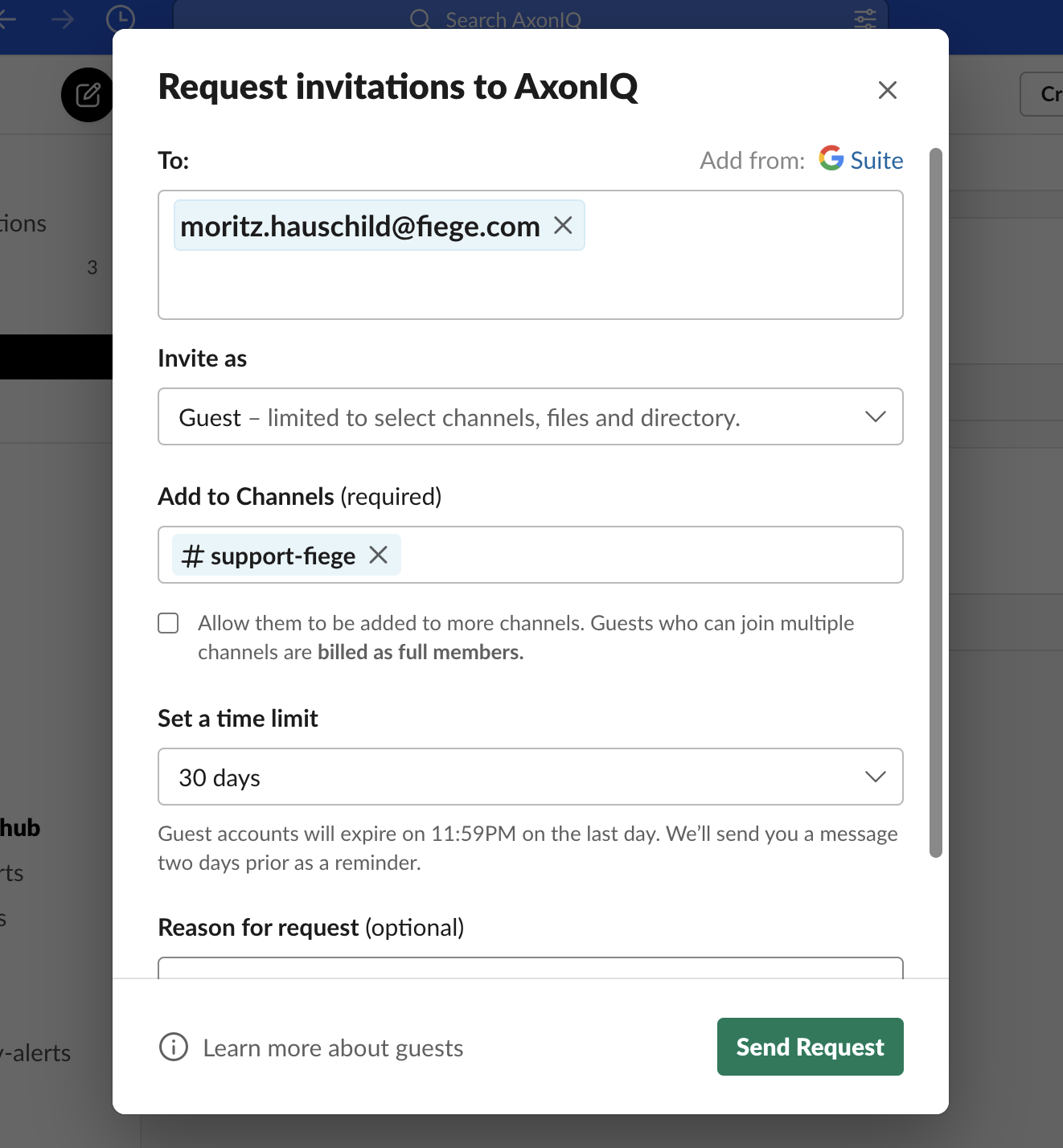 To invite the user from fiege to the #support-fiege channel, we fill the form as displayed and hit send request.
- Example:
- A slack admin will approve the request to invite a guest to the new channel.
- Notify all people in the #support channel that the new channel is available
- Add the slack channel URL into the proper field in the Freshdesk company you created before (https://axoniq.slack.com/messages/support-####)
Important to note:
- DO NOT activate the option to share the channel outside AxonIQ (this is for a shared channel only)
- DO NOT use the Slack Connect as indicated below
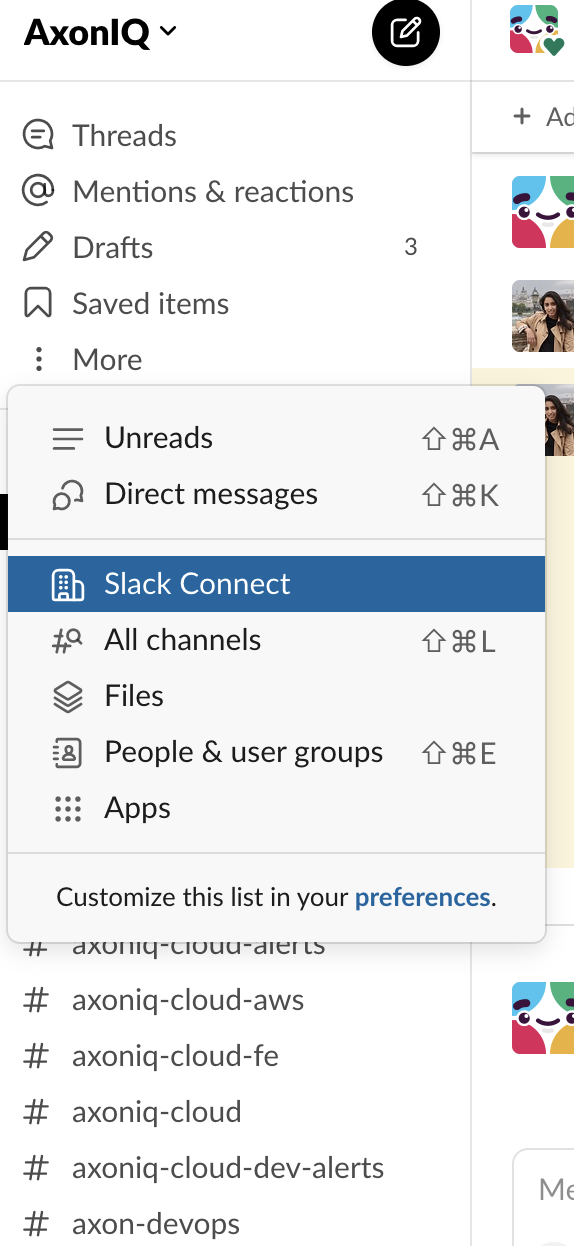
- DO NOT invite customers to support the channel using Settings or Members in the channel settings.
Here is a detailed document describing how to connect an external organization to slack -> https://docs.google.com/document/d/19CRvw_cvC5WL91a9Na4KPZca_ukUt7AajNXrZQqlE4s/edit
Create a Private Category in Discuss
In case the customer cannot use Slack because of their internal company policies, you can propose to activate a private category on Discuss platform. In this case, you can ask the DevRel team to activate the private category, specifying:
- The name of the private category on Discuss
- The list of email addresses to be invited
- The slack channel to bind to Discuss (we still create a support channel for support team convenience)
- Optionally the logo of the company
- You can send the request to devrel@axoniq.io
- The active users limit applies to the slack channel only, the Discuss board doesn't have it.